Scanning Ports and Utilizing SSH
Scanning Ports and Utilizing SSH
Nota importada desde Inbox durante consolidacion bulk.
Scanning Ports
-
Let's start the lab by logging into our Kali virtual machine with the username of kali and password of Passw0rd!
Open a new terminal window.
-
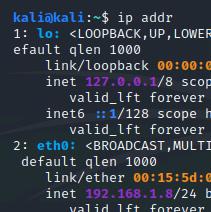
To begin, type ip addr to check our interfaces.
It looks like our eth0 interface's IP address is 192.168.1.8 with a netmask of 255.255.255.0, or /24.
This information will be useful for our network scan.
-
Now, let's figure out our gateway.
Type ip route
We can see that our gateway is 192.168.1.1

-
In the next step, we will use nmap to map out our network.
Learn more about nmap by executing man nmap to view its manual.
Press q when you're done reading.
-
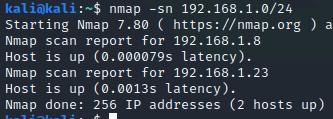
To simply view what hosts are up on the network, type nmap -sn 192.168.1.0/24
The -sn option is used to run a ping scan.
Two hosts, including our Kali machine, are up on this LAN segment.
Let's find out more information.
-
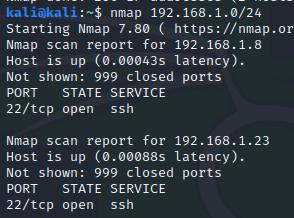
By default, nmap launches a SYN scan.
Let's do this by typing nmap 192.168.1.0/24
This scan still shows us that two hosts are up, but gives us more information as well.
-
From our SYN scan, we can see that 192.168.1.23 is running SSH on port 22.
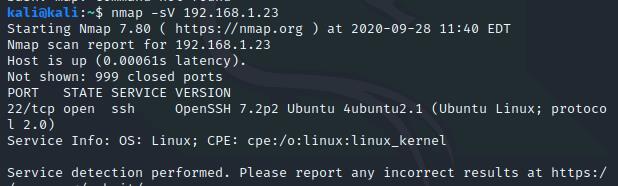
Let's dig deeper on this host by typing nmap -sV 192.168.1.23
The -sv option will probe open ports on the network to determine service and version information.
We can now see that 192.168.1.23 is an Ubuntu Linux system running OpenSSH specifically.
Utilizing SSH
-
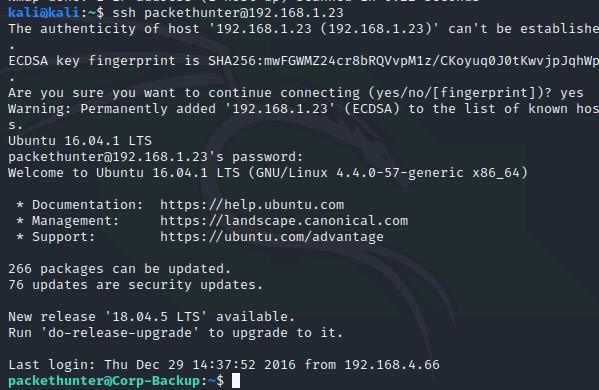
Now that we know that OpenSSH server is running on 192.168.1.23, let's use it to remotely log in to the system.
Type ssh packethunter@192.168.1.23 and type yes when asked if you want to continue connecting.
Use the password packethunters when prompted.
-
We can see that we are remotely logged in to the Ubuntu system by the command prompt changing to packethunter@Corp-Backup
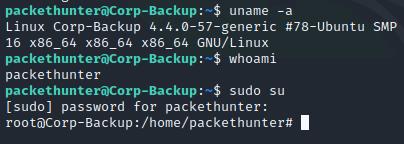
Type uname -a
The nmap scan was indeed correct due to the fact that this is an Ubuntu Linux system.
-
Type whoami to ensure that we are indeed using the packethunter account.
Type sudo su to log in to the root account of this system.
Use the password packethunters again.
-
We are now controlling the system as the root user.
Note that we are in to the same directory as before, but with the root user as opposed to the packethunter user.
Confirm this by running whoami
-
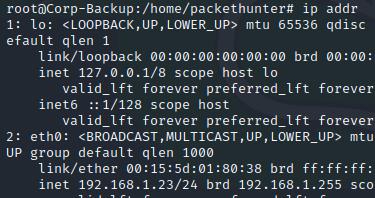
Type ip addr to check for interfaces on this machine.
Other than our already-known IP of 192.168.1.23 and loopback, there are no other network interfaces on this system.
Feel free to continue navigating around this machine.
-
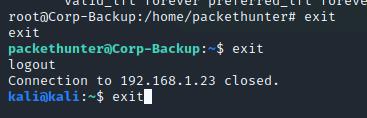
Type exit to go back in to the packethunter account.
Type exit to cancel the SSH connection.
Type exit to close Kali's terminal window.
-
Click Submit to grade and exit the lab.