ITCA - Windows and Linux OS Firewalls
ITCA - Windows and Linux OS Firewalls
Nota importada desde Inbox durante consolidacion bulk.
Scenario
The first part of this lab will demonstrate how to implement Windows firewall rules, and how to verify the rule was created.
The second part of this lab will involve two Kali Linux VM's being used to test our firewall configurations. IPTables is the standard command utility for the configuration of Linux operating system firewall rules on the local host, and will be used in this exercise.
Video
Before attempting the performance-based labs, we recommend watching the lab walk-through videos. These videos are designed to help give you the best user experience and prepare you to achieve 100% on the labs. Knowing how to successfully complete the labs is key in passing the certificate exam.
Windows Firewall
-
The Windows Firewall application is called "Windows Firewall with Advanced Security" (WFAS).
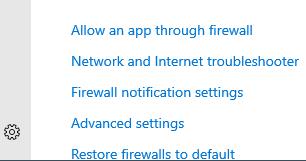
Click the windows button and type Firewall, then select Firewall & network protection. From that page, select Advanced settings then click Yes.
-
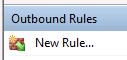
To create a new rule, select Outbound Rules then New Rule on the right-hand side of the window.
This will launch a new window labeled Rule Type
-
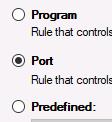
Note that we have 4 rule creation options - rules for a port, program, customized rule or predefined rule. For the purpose of this lab, we will create port rules.
Select the Port radio button and click Next.
-
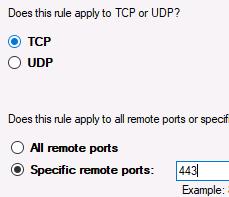
On the Protocol and Port screen, ensure the TCP radio button is selected.
On the lower-half of the screen, select Specific remote ports. Enter 443 as the port number. This is the HTTPS port.
Click Next.
-
Now we need to decide the action to take when this rule is met. Select Allow the connection.
Click Next.
-
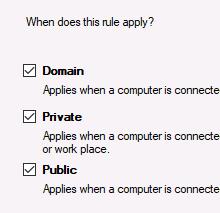
Leave the defaults on the Profile page (apply the rule to all 3 profiles) and click Next.
-
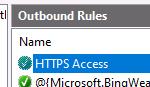
Name the rule HTTPS Access. Leave the description field blank.
Click Finish.
-
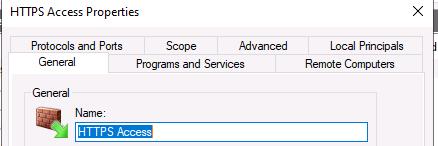
Locate and double-click our HTTPS Access rule to launch its specific properties.
Click on each tab to view the details.
IPTables
-
Switch to the Kali Linux 2020.3 SOURCE VM.
Login as kali with the password Passw0rd!
-
Open a Terminal by clicking the Terminal icon in the upper-left corner.

-
The ip command in Linux is used to show or change our routing configurations, network devices and interfaces.
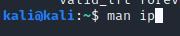
View the commands manual page to learn more about this command by running man ip
Press q when you're fininshed to exit the manual page.
-
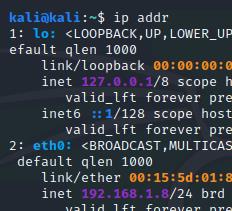
Check your IP address by executing ip addr
Note the eth0 IP address on Kali Source is 192.168.1.8/24
-
Now switch to the Kali Linux 2020.3 DESTINATION VM.
Login as kali with the password Passw0rd!
-
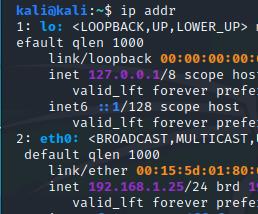
Open a Terminal and execute ip addr
This will show you the IP address on Kali Destination is 192.168.1.25/24
-
From the Destination VM, ping the Source VM 5 times by using the -c option (short for "count"). You should see replies.
ping 192.168.1.8 -c 5

-
Switch back to the Kali Linux 2020.3 SOURCE VM.
Send 5 pings to the Destination VM.
ping 192.168.1.25 -c 5

-
Now that we've ensured our two machines can communicate, let's learn more about IPTables.
Execute man iptables and read through the manual.
-
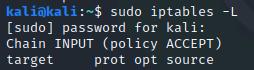
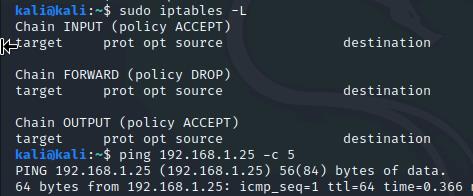
In the Source machine, display the current firewall rule settings by executing sudo iptables -L and entering the sudo password Passw0rd!
Recall from the manual that the -L option is short for "list", and will list all of our rules.
-
Note that the current rule is set to accept all policies to the Dstination address. In other words, no rules are established - it is displaying the default configuration policies; INPUT, FORWARD, and OUTPUT chain.
The INPUT chain is used for incoming connections.
The FORWARD chain is used for incoming connections that are not destined for the device itself. This chain is rarely used on a client machine.
The OUTPUT chain is used for outgoing connections.
The INPUT policies will be the focus of this exercise as we will work the block traffic flow from the source to Destination VM.
-
We will now go through 4 different scenarios to create policies on the Source VM and attempt to communicate with the Destination VM.
Scenario A: Create a rule to block the Source Machine from communicating with the Destination address.
-
To suffice the scenario, enter the following rule:
sudo iptables -A INPUT -s 192.168.1.25 -j DROP
This rules specifies that any packets coming from the IP address 192.168.1.25 sould be dropped. The -A option tells IPTables to append the rule to the specified chain, which is the INPUT chain. The -j tells IPTables which action to take when the rule is met, which in this scenario is to drop the packet.

-
Make sure the rule was created by executing sudo iptables -L
You should see a DROP entry for all protocols with a source of 192.168.1.25.

-
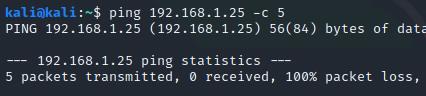
Attempt to communicate with the Destination VM by running ping 192.168.1.25 -c 5
You should not recieve any replies from the Destination VM - packet loss should be 100%.
-
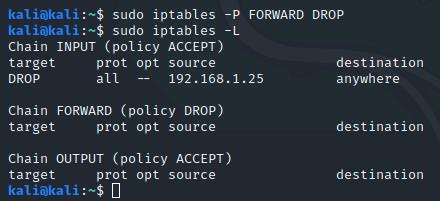
Scenario B: Modify the default chain FORWARD setting to change Accept to Drop.
To accomplish this, type sudo iptables -P FORWARD DROP and press Enter.
Then run sudo iptables -L to verify it worked.
-
Try sending a ping to the Destination VM with ping 192.168.1.25 -c 5
Note that the Source VM still cannot communicate with the Destination VM.
-
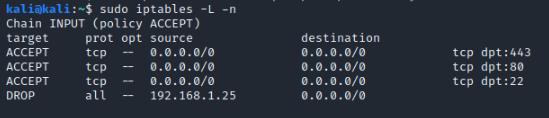
Scenario C: Enable port 22 (SSH), port 80 (HTTP), and port 443 (HTTPS) for the purposes of connectivity from the Source VM to the Destination VM in the firewall ruleset.
To suffice these conditions we will have to create three separate rules - one for each port. We will also be using the -I option (uppercase i) to add them at the top of the rule chain.
Create the first rule by executing sudo iptables -I INPUT -p tcp --dport 22 -j ACCEPT

-
Now create the rules for HTTP/HTTPS:
sudo iptables -I INPUT -p tcp --dport 80 -j ACCEPT
sudo iptables -I INPUT -p tcp --dport 443 -j ACCEPT

-
Verify the rules were create by executing sudo iptables -L -n
Note that ports 22, 80 and 443 have been augmented to the ruleset.
-
Switch back to the Kali Linux 2020.3 DESTINATION VM.
If our rules are working, we shouldn't be able to send pings to the Source VM, but we should be able to connect via SSH due to the SSH rule we created.
First, trying sending pings to the Source VM with ping 192.168.1.8 -c 5

-
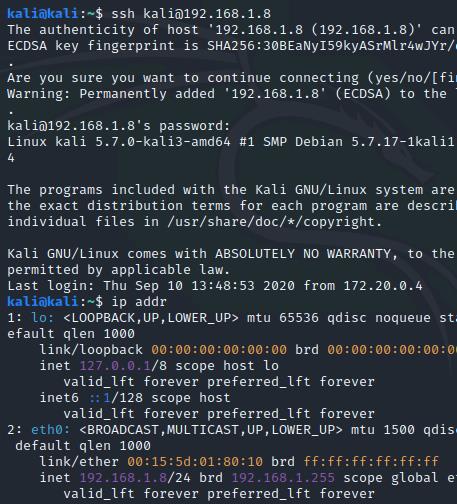
Then, attempt connecting to the VM via SSH with ssh kali@192.168.1.8
We are asked if we want to continue connecting, indicating our packets weren't rejected by the Source VM.
Type yes and press Enter.
Enter the password Passw0rd!
Note we were able to SSH into the Source VM. Verify this by running ip addr - you will notice we are returned the Source VM's IP, since we are logged into it.
Type exit then press Enter to close the connection, then switch back to the Kali Linux 2020.3 SOURCE
-
Scenario D: Remove firewall rules from the IPTables configuration.
To do this, we will use the -D option.
-
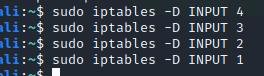
In your terminal, delete the rules by executing:
sudo iptables -D INPUT 4
sudo iptables -D INPUT 3
sudo iptables -D INPUT 2
sudo iptables -D INPUT 1
-
Verify the rules have been deleted with sudo iptables -L
Ping the Destination VM with ping 192.168.1.25 -c 5.
Note that we can now communicate with it.
-
Make sure to close your terminal window prior to submitting for your grade.
-
Click Submit to grade and exit the lab.